
It’s been a busy week! I had said that I would show you how to create the A+ content, which meant I had to do it myself. I’ve done a brief version, below.
There are two things you need to know about this before you begin. Firstly, you have to have access to your own kdp dashboard. If your books are being published by a publisher, you cannot control how this section looks on Amazon for your books. Secondly, this is a part of the sales pages on Amazon, and they look at it very carefully, so you’ll do best to make yourself familiar with the content guidelines, and follow them. For example, you cannot extract and highlight a customer review in this section. Amazon offers detailed instructions and support for A+ content, take time to go through this before starting the process.
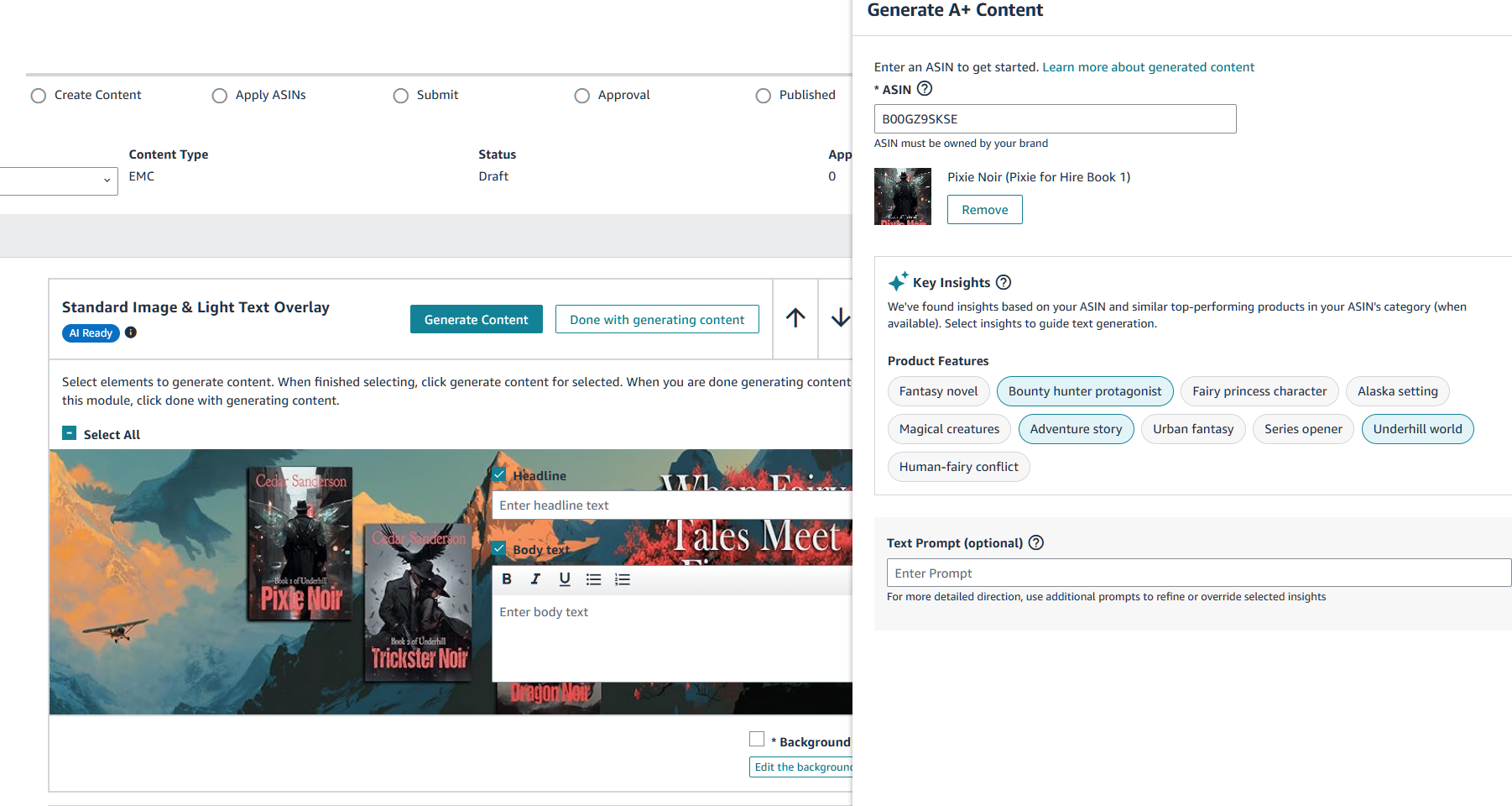
There are some modules which offer AI assistance, if you want to try that. This may be helpful if you really don’t know what to say about your book (it’s generated from an ASIN of a specific book) or how to make graphics. I didn’t use this, but I’ve made a screenshot below to give you an idea of what it looks like, keeping in mind the graphic there is one I created, not generated.
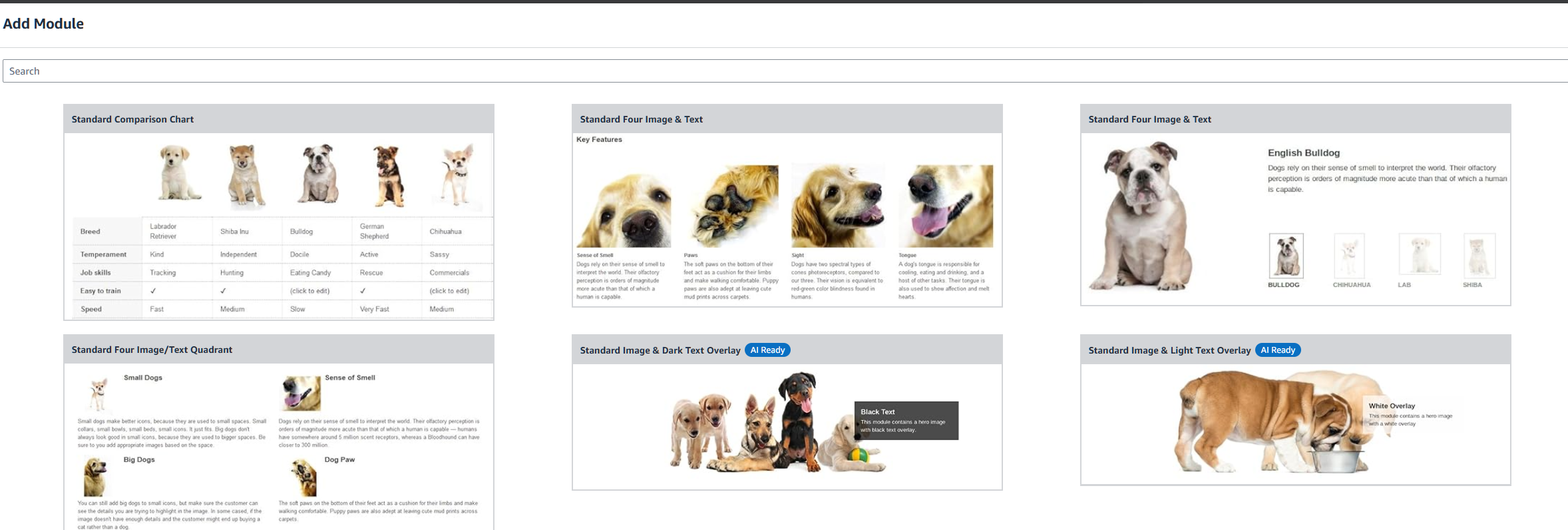
As you select modules, Amazon has helpfully set them up to show you what they will look like in desktop mode (all the modules that I can tell, are fully mobile responsive). I find the dog examples adorable. There are a lot more than I’m showing here. Take time to explore this before you dive into making text and graphics, it may help you set up what you want to create for your book or series.
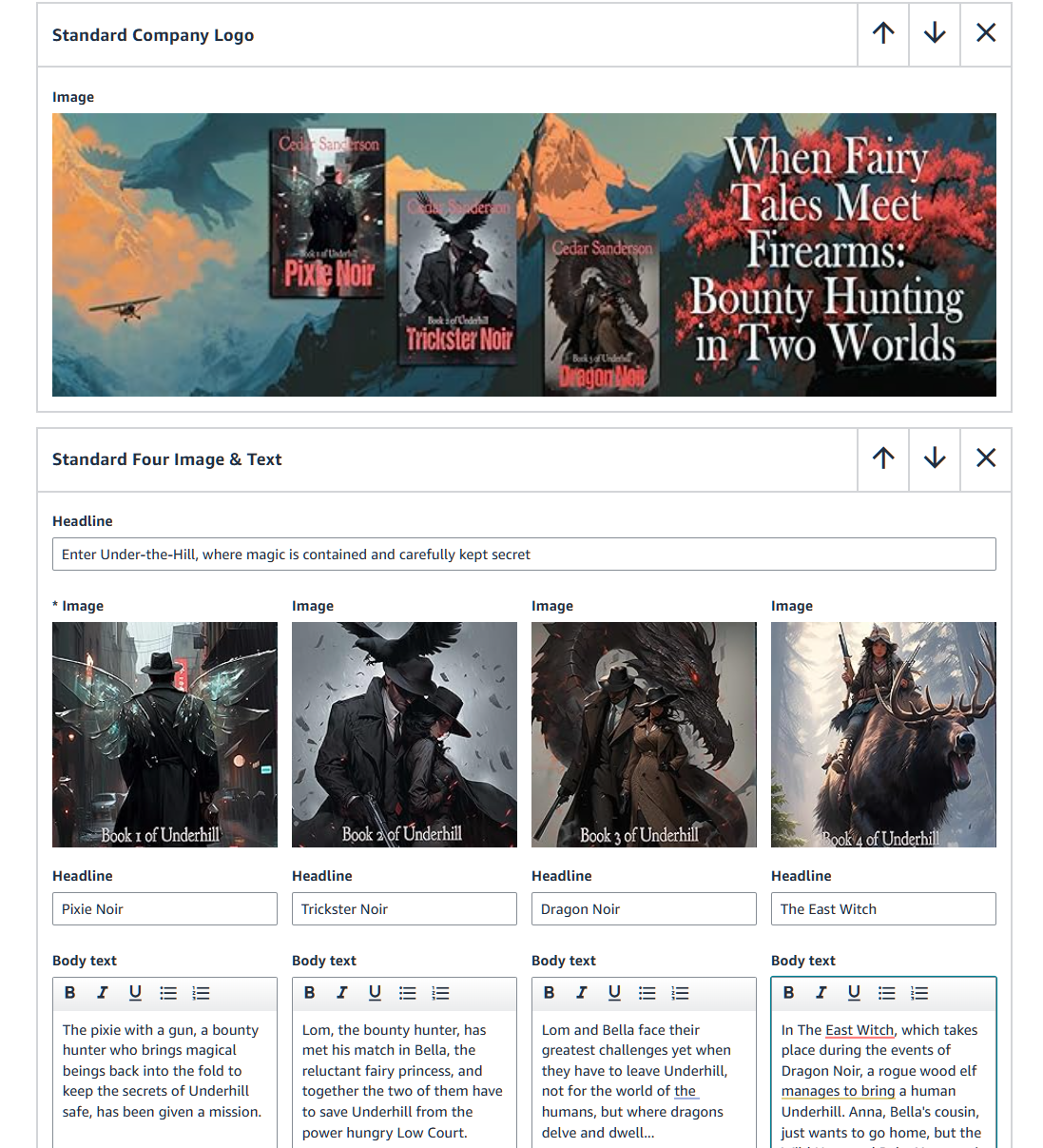
Keep in mind you do not need to do all of these things! And likely should not. This is the content that you scroll past on your way from reading a book’s blurb, down to reading customer reviews. Having some material here is great. Keeping your customer from getting where they want to go in a timely fashion is not so good. I opted to create two modules for this series, and as you’ll see, linked the books in the main series, and related books, to make readers aware they exist.
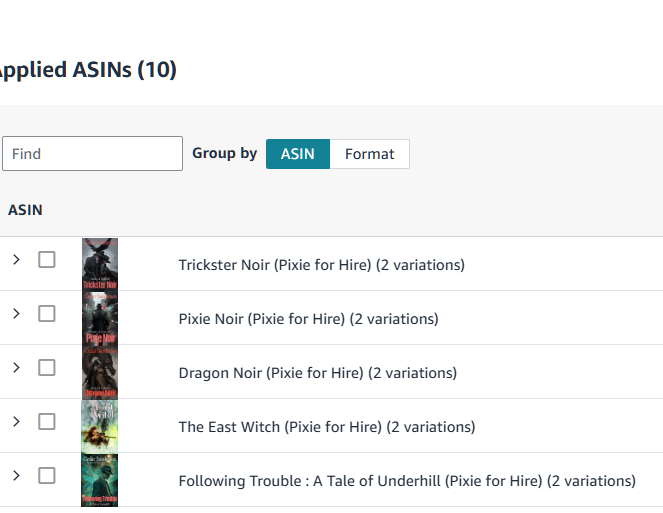
Once you have this set up the way you’d like readers to experience your book or series, the next step is applying ASINs for those books to it. In my case, I’m only working on my Underhill books, so I pulled all of those to connect to the A+ content I’ve set up. I think, although I haven’t confirmed this, that if you made a module about you the author, you could apply it to all of your books. Better do this early! I am thinking about how many titles I have on my kdp dashboard and flinching a little.
Once you’ve applied the ASINs and have your books attached to the content, you’ll be offered a preview of what your modules will look like on the Desktop, as I show below, or in mobile mode. I recommend you check both. Here’s where you’ll see what I mean about keeping it simple, as those four sections about each book appear vertical, and you must scroll to pass them before you’ll get to the reviews.
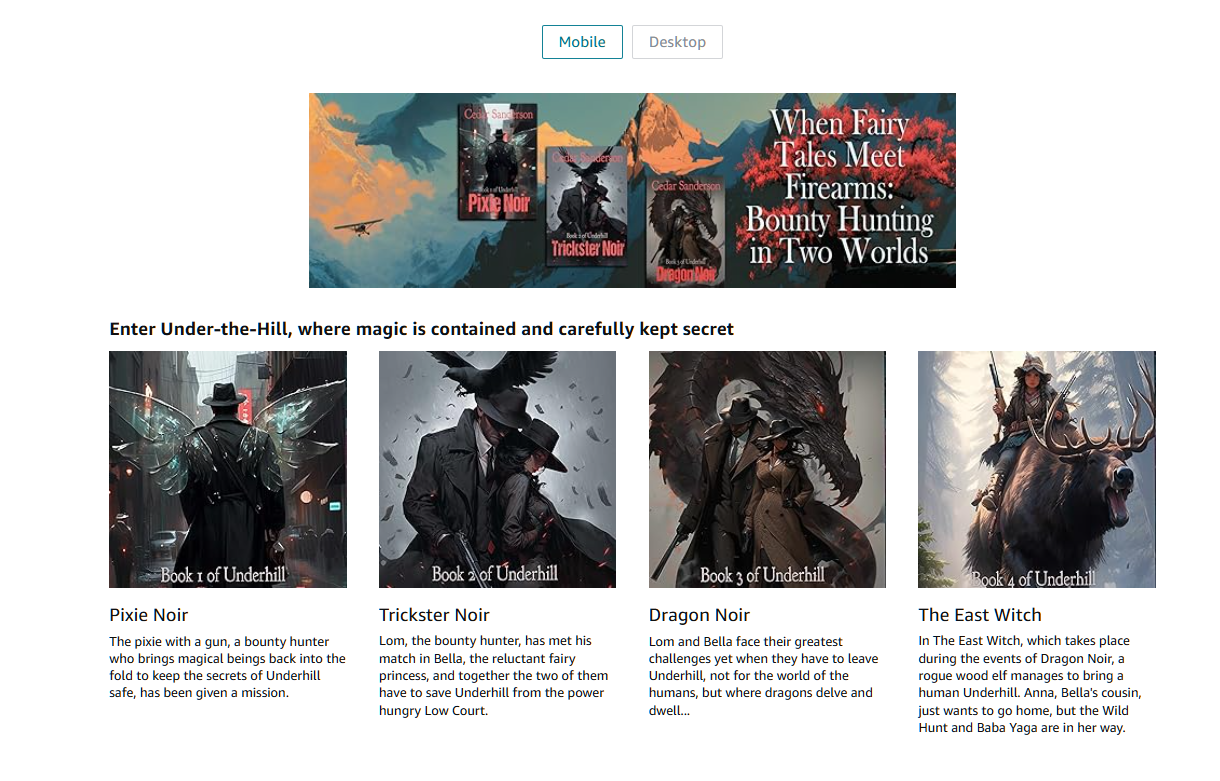
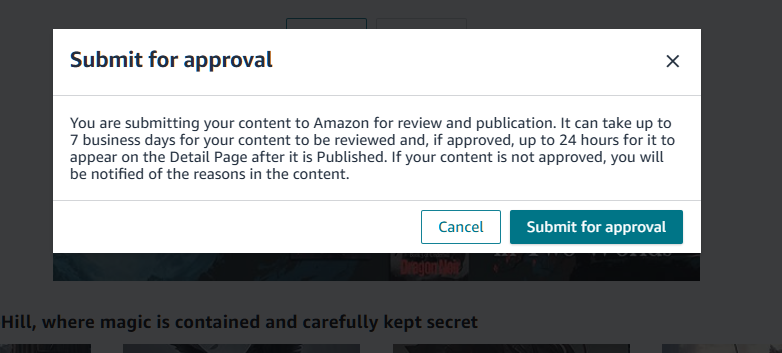
Finally, you’ll submit this for Amazon to take a close look at it. As you’ll see, this is a slower process. Perhaps next week I’ll be able to show you what it looks like live!
Next week, I’ll talk about the importance of updating your backmatter inside each book, to give your readers a seamless binge-reading experience on an ebook, and in paperback an incentive for them to just buy the next book.
All these things are marketing, won’t take terribly long to do, need not cost anything at all, and present a more professional product to the consumer.
Any questions?


 Mad Genius Club
2 responses to “Marketing Minimalism: Amazon A+”
Just got mine submitted. I made the mistake of telling Claude.ai the objective was partly to bring in new readers to my oldest series and partly to learn A+ content, and the LLM led me a merry dance through five modules of content before I got to the preview stage and said: “Yeah, no, we need one module.”
I did test the AI component of an AI ready module before turning to Claude for help. The image component just embedded the book cover I offered as a reference image into a moody library scene, at a scale not quite big enough to read the cover text comfortably. The blurb component, which Amazon hypes more heavily, had panache but no substance. I didn’t hate it, but I felt like it didn’t tell the customer anything substantial about my books, and when I went to Claude (primed in this chat with enough images and documents to have some idea of what the series was like) the AI called it “AI slop” which was hilarious under the circumstances.
[…] follow on from last week, this is what the A+ content looks like on Amazon once it’s approved. Very much like it did […]