
I keep running across things I think are obvious, but then they have to be explained, so this is a post about how to read. Specifically, and because I assume that all of you are already cognizant of words and language, how to read an ebook.
Options to read an ebook of any format include your computer, a dedicated ereader, a tablet, a smartphone (I used to read on my palm pilot), and anything that allows you to download an app onto it. You can buy books from any distributor, be it Amazon for Kindle, B&N for Nook, Smashwords, Kobo… there are many more obscure ones. And you can read them on any device with very little technical manipulation.
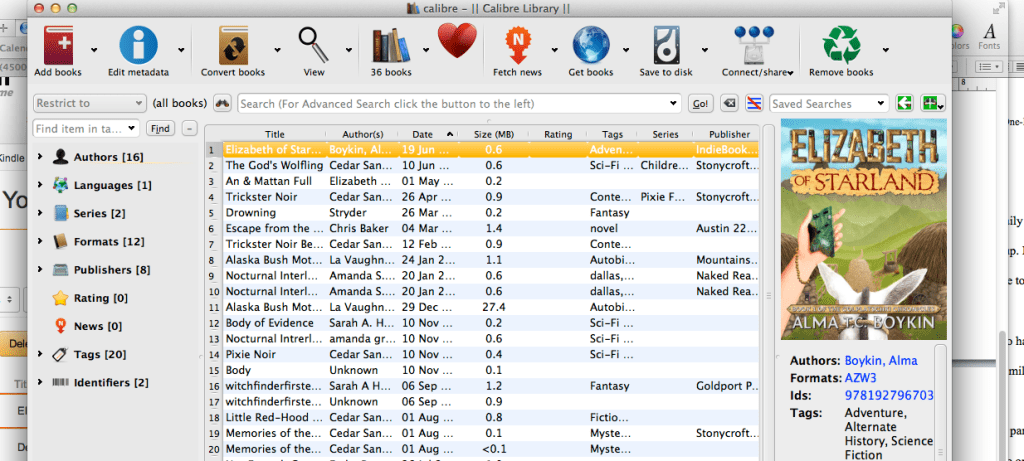
I actually urge you to download and back up your ebook library, no matter what device you read on, because no platform lasts forever, and because I have a suspicious mind. To do this you will need a free program called Calibre. Calibre also enables you to catalog and organize a virtual library, something I have difficulty with as I have been reading ebooks for fifteen years and have them all scattered through files on my computer. Time to tidy that up.
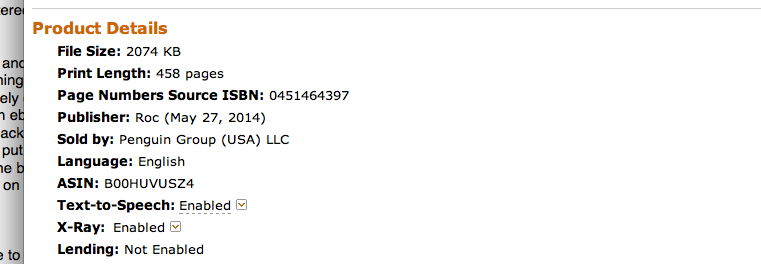
Two more things, Amanda Green pointed out, are DRM and sharing. DRM is Digital Rights Management, and it is used by traditional publishing to attempt prevention of piracy. It is ineffectual at that, as it can be broken relatively easily, but I am not going to discus how. I would suggest checking before you buy an ebook to see if it has DRM, which will complicate any attempts at downloading for backup, and sharing across multiple devices. Sharing is how many devices you can put content on. The publisher will sometimes limit the amount of devices a book can be on, or if the book can be lent out. So check your seller’s preferences for DRM and limitations on downloads, lending, or sharing.
First of all: reading.
Reading online is the easiest method, as you don’t have to download, but the cons are that you are tied to your computer and the screen may bother your eyes after a few hours of reading. If you do read online I suggest not making a marathon of it, get up, move around, look out the window. If you do have a mobile device, you can download various apps to it to read with. There are a few generic ebook readers which can handle epub files (see glossary below) from any source. Then there is the Kindle App, iBooks (Apple’s bookstore) and Google Books. I personally use my Kindle app on my phone and tablet to read. It’s easy to sync a book to it after purchase, and I can put down one device, pick up another, and the book opens to the same place.
Reading on a dedicated ereader, once an unheard of option, is now very affordable, and you have options. Both Amazon and B&N sell their versions, the well-known Kindle and Nook. I have had the opportunity to play with both, and I recommend the Kindle over the nook (now, more than ever, as the nook platform is unstable and my cease to be supported at any time). You can then choose an e-ink reader, which is not backlit (if you read in bed they make handy little lights to clip on, where were those when I was 11 and hiding under the blankets with a flashlight?) and looks like real paper. For those who dislike a bright screen, or like to read outdoors, these are ideal. They also have the advantages of a really long battery life, adjustable font for those with vision issues, and light weight.
My first reader tried an e-ink device, then a touchscreen, and went back to the simpler one, he prefers the ability to turn pages with a button click rather than, as he put it “my fat fingers accidentally hitting the screen.” Touchscreen devices like the Kindle Fire or Nook color are handy if you want backlit, color images, and the ability to do other things than read on your device. If you do, I’d suggest a small tablet instead. You will have more flexibility with a 7” tablet for apps, and a lower price (I paid about $130 for my Asus 7” tablet and it’s a champ).
Next: Library Curation
There is a persistent belief that you aren’t buying an ebook, only renting it. Well, if you are lending as Amazon allows you to do, this is true. But if you have purchased an ebook from Amazon or another seller, you can also download it, store for backup, and even convert it to another format. If you have a nook, for instance, you can purchase from Amazon and read it on your device. It’s a little more complex than click and read, but for back-up purposes you should be doing this anyway.
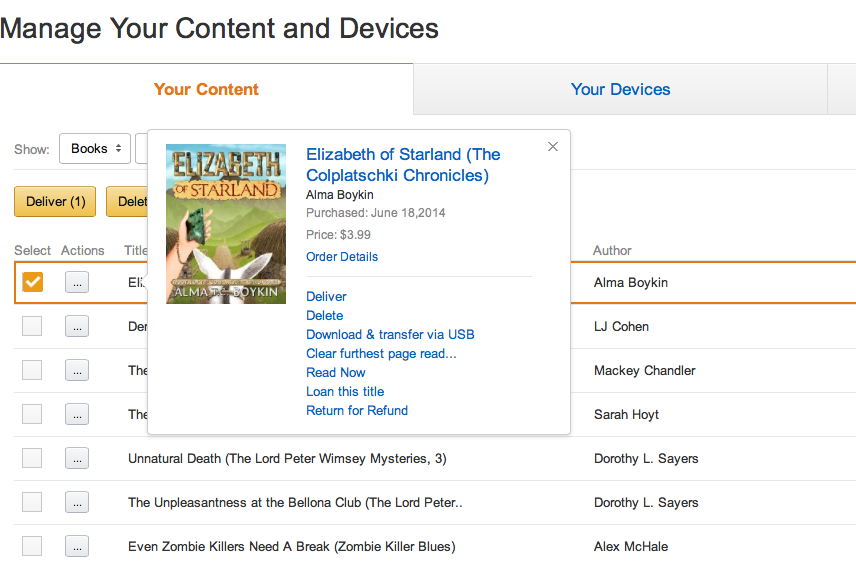
To download a book from Amazon, hover over “Your Account” and click on “Manage Your Content and Devices” from that drop-down menu. This will prompt a sign-in, do so, and you will see your content, displayed as a list of titles. You will see that you can sort by various options. Select a title, click on “Actions” and select “Download & transfer via USB.” A file will appear in your downloads folder on your computer, with an .azw suffix.
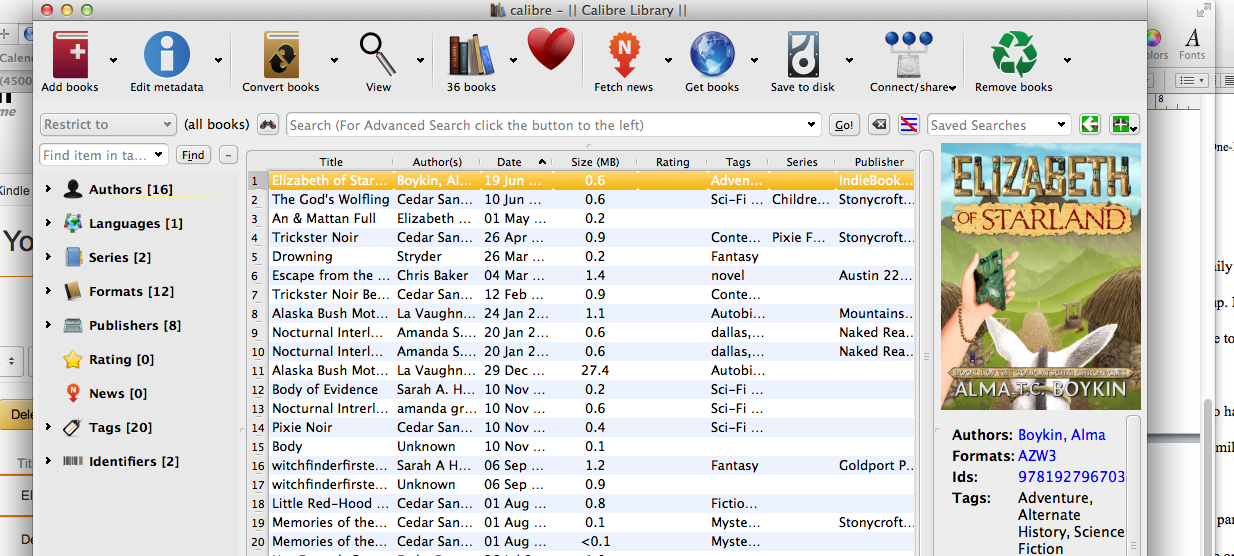
If you have Calibre on your computer, when you attempt to open that file, it will open with Calibre. If you desire to alter the format of the file, for, say, a Nook, you will want to click on ‘Convert Books’ and check to make sure that ‘output format’ is set to epub. You will note if you click, there is a long list of possible options, allowing you to set this book up to be read on almost any device. Have fun!
I should note that I am using an Indie published exemplar, I have not tried this with a book under DRM. I don’t know if it would work, it might. I try not to buy books under DRM, as I want to be able to catalog and back up my library. Which is something I am behind on!
To download a book from Barnes & Nobles’ site, login to “My Nook” and then click on “go to Library” and you will see a download button under each book. Again, they will wind up in your downloads folder, double click, and they will open in Calibre. You can proceed as you wish.
To download from Smashwords is as simple as it is from B&N, login, go to ‘my library’ and click download. You will then be offered a list of options for file format, I’d suggest sticking with epub unless you have a reason for choosing another format (Like .mobi for a kindle device). Again, locate it, put it in Calibre, and go to town on it.
Finally: sideloading
Ok, now you have this nice library on Calibre. What if you want to put these shiny converted books onto a device? Well, the simplest way is likely to sideload them from your computer to your device using a USB cable. Plug the device in, wait for it to show up on the menu, then click and drag and drop files into the proper folder. I can’t get a lot more specific: every device is a little different. I can give you hints. For a nook, you will need to use Adobe Digital editions, as described here. For a kindle, you can use your kindle email address which is given to you in the “Manage Content & devices” area, and send the .mobi file to the device over wifi. If you are loading onto a phone or other device, look for ‘library’ or sometimes the app will have a folder.
I know this last bit is vague, and I’m sorry. I can say that if you ask, here or over on my blog, we will likely be able to help if you’re stuck on how to get content onto a certain device. I might not know, but I’m not the only brain (or the biggest!) hanging around these parts.
See, here’s the thing. We want you to be able to read your books, the ones we wrote, and although we know that paper is special, ebooks are terrific. They are portable – I can carry hundreds in my pocket wherever I go – the ability to adjust font sizes is great for readers who hate squinting at 11 pt font on paper (and frankly, the large print selection at most libraries sucks), and they are cheaper than paper. Not to mention they won’t have you needing to reinforce your floors from the weight of the bookshelves. I’ll never fully give up paper, but I love having options.
Freedom!
Glossary:
- .azw – the proprietary format Amazon uses for ebook files.
- Calibre – a freeware program to manage and back up your digital library.
- DRM – Digital Rights Management, used by some publishers in an attempt to prevent their books from being read too often or by the wrong people.
- .epub – a more generic ebook file, used by Nook and others.
- .mobi – the format you can use for ebook files loaded onto your kindle.



 Mad Genius Club
22 responses to “How to Read”
I like this definition:
DRM – Digital Rights Management, used by some publishers in an attempt to prevent their books from being read too often or by the wrong people.
After all, it takes a serious publisher to know books shouldn’t be read too often, or by the wrong people — people might start having (gasp) ideas, and then where would we be?
Right, and if you handle an ebook too often, the ink all rubs off, or summpin’
The electrons lose their charge . . .
*in best sincere, political-ad voice* My name is Alma Boykin, and I approve this message. 😀
I’d just add that there’s a bonus to downloading your e-books. Should something happen to both your internet and your computer, IF you do regular hard-drive back-ups, you still have your e-books. Not that I’ve had both happen at the same time. Yet.
Well, I remember tales of earlier venues (fictionwise? Not sure any longer) going belly-up and early ebook adopters losing hundreds of books in the debacle. I’m not as well-prepared as I ought to be (time, time! ask me anything but time…) but I also get tired of ‘oh, you’re only renting an ebook…’ because it isn’t true. Well, unless you insist on books with DRM.
And I just happened to have purchased Elizabeth right before I started working on the post 😀 I really wasn’t trying to promote. Promotion will happen on a Friday Review sometime in July.
I guessed that, plus Caliber arranging things in author’s last name alphabetical order. It’s just that the temptation to comment was too strong, given all the [redacted] political ads that have been inflicted on us this spring.
I have rented e-books, and while you can’t save them like you do others, you can preserve any notes or comments you made, at least with Amazon rentals.
Thank you!
I agree with TXRed, always download *and* backup your ebooks (and other files).
As for DRM, I would suggest doing a search online for Apprentice Alf. He has tools that can remove DRM from ebooks. I found them easy to use but some people may have to talk to a “guru”. There are some steps that may require help in setting up the tools but once the tools are “setup”, removing DRM can be done in under five minutes.
For storing ebooks, I have a folder/directory holding all of my ebooks with subfolders/sub-directories named for the author. This makes it easier to move the ebooks to a different hard-drive for backup. Of course, the sub-folders make it easier to find books by a certain author.
You might was to consider changing the “file name” of your ebooks. Some sources (like Amazon) don’t “name” their ebooks by the title. Renaming the file name also allows you to group your ebooks by series. For example, I’ve named David Weber’s Safehold books with the “Safehold ## – ” followed by the book title. So the ebook version of “Off Armageddon Reef” is named “Safehold 01 – Off Armageddon Reef” in the “Weber, David” subfolder.
I read my ebooks either on my PC using “Digital Reader” (for ePub ebooks) or on my Tablet using the “Sony Reader” software. Yes, Sony isn’t selling ebooks but I still like the software.
Also my Tablet has an app that allows me to find any folders/directories on my Tablet. Since I’ve move a folder/directory that contains my ebooks onto my Tablet, I can use that app to located an ebook on my Tablet that hasn’t already been opened by the Sony Reader. I’ve set up Sony Reader as the default program for ePub ebooks.
If you’ve gotten this far and think this is confusing, don’t think you’re stupid. While I’m somewhat computer literate, I’m not good at explaining things and I know that other smart people aren’t as computer literate as me (and there are people who make me look like a beginner). [Smile]
The short version of how the Apprentice Alf DRM removal tools work is: be on Windows. Linux and/or Mac users may need to borrow a friend’s computer to do this. Then install Amazon’s Kindle for PC software, Calibre, and Apprentice Alf’s DRM removal tools for Calibre. Now when you import an Amazon Kindle book into Calibre, the DRM removal plugin will be able to “hook into” the Kindle for PC software to figure out the encryption key for the DRM on that book, remove it, and pull in a clean copy into Calibre.
Even shorter version: as long as you’re on Windows, the plugin is able to ask the official Kindle app, “Hey, could you decrypt this file for me?” and the official Kindle app will comply. Then the plugin hands the decrypted file off to Calibre to import into your library.
I’ve done it (there was one ebook that I bought from Amazon back when, not realizing that this ebook did have DRM on it) and it was pretty easy for me. If you (whoever you are reading this) have trouble with the process, ask your local computer “guru” for help and he’ll probably be able to walk you through it without too much difficulty.
Thank you, you just answered my major remaining question. I want to purchase from Amazon and read on my Linux PC. So I will have to use my XP box (which I would *really* prefer to not have hooked to the ‘net) as a translator for now. It’ll work.
Now, off to check out the rest of the info here.
You can get all that accomplished without hooking your XP box to the Internet, if you use the “sneakernet” (a USB drive, walked from one computer to the other) to transfer the Kindle installer, the Calibre installer, all your books, and all the other files you’ll need. It’s more complicated, but it’ll work. You’ll have to find a way to persuade their website to let you download the Windows installer when you’re accessing it from a Linux PC, but it is possible.
Alternately, you could transfer that Windows XP machine into a virtual machine (running under VirtualBox). Take a snapshot of the VM’s hard drive before you hook it up to the Internet. Then convert the files you need, copy them off the virtual machine, and restore the snapshot to its original state. Voila — whether or not a virus infected your XP virtual machine while it was hooked up to the Internet, it’s gone now. (So is everything else you installed after taking the snapshot, of course, which is why it’s an annoying procedure to go through. But you could install Kindle, Calibre, etc. via a sneakernet procedure by downloading the installers on your Linux box then transferring them to the virtual machine. Then take the snapshot, then hook up the VM to the Internet to download the Kindle book files. That way when you restore your snapshot, you still have all the software installed.)
That was kind of stream-of-consciousness; if there’s anything I didn’t explain well (which seems likely), let me know what you need me to explain better.
I don’t know about Linux but I can tell you that I’m nearly 100% positive that those plugins work in Calibre in OSX, if you own a Kindle. Maybe that’s the critical difference. In Calibre with those plugins, there’s a setting to add your Kindle’s serial number. Do that. Download the book to your Kindle. Connect to the computer. Calibre recognizes and allows you to look at your Kindle’s library in the app. Right Click on the book you want to add, and select “add to library”. Magic occurs. The now de-DRM’d book now appears in your calibre library and is ready for format transfer, backup, etc.
Two quick points.
1. This is technically a violation of DMCA (Digital Millennium Copyright Act), and unless the law has changed since I went to school, fair use or personal use are not defenses. 2. Things get really interesting when you combine Calibre, Dropbox, and OPDS. In fact, you may want to look at an app called CalibreOPDS on Mac, if you’re rolling OSX. > > >
This is technically a violation of DMCA (Digital Millennium Copyright Act), and unless the law has changed since I went to school, fair use or personal use are not defenses.
I break that part of the DMCA every time I watch a DVD on my Linux computer, actually. The DVD encryption system may be ridiculously weak, but it’s still “a technological measure that effectively controls access to a work protected under this title [the DMCA].” Which means that in order to watch a DVD I purchased legally, on a computer I purchased legally, with an operating system I downloaded legally… I have to break the law. Which is ridiculous, and I deliberately break that provision all the time. And I say so in public. I actually hope someone decides to charge me on a violation of that subsection, because that would mean I would actually have standing to challenge that section’s constitutionality in court. As it stands, that section is unconstitutional, but I can’t do anything about it myself — except to continue to deliberately flout an unconstitutional law.
Me? Angry about the DMCA’s ridiculous, unconstitutional, illegal anti-circumvention provisions? Whatever gave you that idea?
I’ve been using Alf’s tools for years on OSX. I don’t use the plugin though. It’s easy enough to run the tool on its own then “Add” the file to Calibre.
Years back, Baen and Amazon weren’t playing nice together. My first experience with Sarah’s writing was an Insti-link. I got Darkship Thieves onto my Kindle through this circuitous route: http://diogenesclubarchives.blogspot.com/2012/12/buying-books-then-and-now.html
Unfortunately, DRM, especially .azw, does not play well with Calibre when it comes to converting formats.
And if you were unaware of it, .epub, like .docx, is merely a container format renamed from .zip. In the case of .epub, it’s a bunch of linked web pages with all the supporting “transparent to browser” files like cascading style sheets.
If you’re having issues with a file, you can rename the extension to .zip and open it with your favourite unzipper, fix the issues, and rezip the changed files within their directory, and rename it back to.epub. 🙂
I didn’t know it was a container file… I was able to convert from it. I also knew docx was a pain in the tochis! Thanks.
DOCX is a pain — and I’m being nice here — because of all the junk code in it.
You can also open the ePub file in Sigil, which is a free open source program, and edit it there — both the html and the actual text of the file if necessary.
For Kindle, the proper format will go into DOCUMENTS folder. If using Calibre, it will do it for you automatically. But if you want a Calibre friendly Kindle format, make sure you have the Kindle PC, and download the Kindle PC format from your Amazon act. THEN open that one with Calibre and convert it to AZW, AND Mobi. then Calibre Or you) can put it on your devicend it wil be able to be read by the kindle.
I will point out that I am work on an OSX bsed system – I’m a Mac girl. Which is why I try not to get *too* specific.
Late to the discussion, but I wanted to add that the newest version of Google Play Books will also let you put one device down, and pick up reading where you left off on another device as long as you have uploaded your epubs or pdfs to Google Books. I just finished doing this with my TBR folder today. Once I finish a book, I’ll delete it from Google, but keep it in my Calibre library on my PC if I ever want to re-read it.